

Map Filters and the Activity Range
Filters let you choose the time window you fly in and hide what you don't need, so the map stays calm and your route is easy to read. Open them with the funnel button at the top of the map, or press F.
Filters are part of the Live plan. Without Live you can open the card and read it, but the controls are locked.
Your filters also apply to your briefing.


Activity range
The Activity range is the UTC time window that the map, the details panel and your briefing show activation status for. With Plan Ahead, part of Live, it can be any window up to 45 days ahead.
- Presets: Until midnight UTC, Until SS+15 (until 15 minutes after sunset at your position), Tomorrow and Weekend.
- From and To: set your own UTC date and time.
- The arrows on either side shift the window one day earlier or later.
- Timeline opens a slider to drag the start and end of the window.
- Night-only activity: turn this off to hide airspace and NOTAMs that are active only at night.
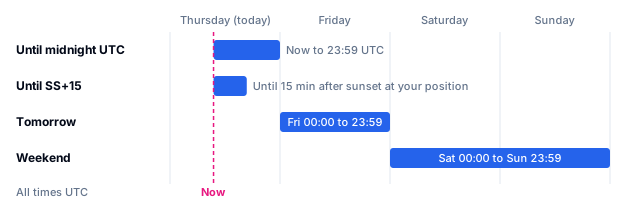
Status for later days is only as complete as what has been published. An AUP is usually published the day before it applies. More background: What is an AUP/UUP?
Altitude
Set a Lower limit and an Upper limit, by typing or with the slider. Each limit can be in feet or flight level. While you drag, the unit switches by itself, unless you picked one.
Airspace and NOTAMs fully outside your band are hidden.
Status
Show or hide airspace by its activation status: Not Active Airspaces, Activated by NOTAM, Deactivated by NOTAM, Activated by AUP/UUP, Activated by AUP & NOTAM and Other Active Airspace. For the colours on the map, see Map and legend.
NOTAMs
Three sections decide which NOTAMs you see.
NOTAM Format
Every NOTAM is either Graphical (drawn with its own area), split into Restrictive NOTAMs and Activity NOTAMs, or Point / Other. A Point / Other NOTAM can still carry an area.
Subjects and topics
Tags for what a NOTAM is about, for example airport-linked NOTAMs, obstacles (cranes, wind turbines, masts, poles), obstacle lights, unserviceable navaids, trigger NOTAMs, IFR-only NOTAMs, drones (UAS) and military activity. One NOTAM can have several tags. A tag says what the NOTAM is about, not whether it is active now, and a missing tag is never permission to fly.
NOTAM Scope
Aerodrome, Navigation warning, En-route and Checklist. A NOTAM with more than one scope shows when any of its scopes is on.
Airports
Show or hide airports, by airport type. For the airport icons, see Map and legend.
Airspace types
Show or hide each type, such as CTR, TMA or ATZ. For what each type means and how it looks, see Airspace types and classes.
Airspace classes
Show or hide each ICAO class, A to G. More background: Airspace classes in Europe.
Display Options
Show NOTAM/AUP Tooltips turns the N and A markers next to airspaces on or off.
Quick actions
- Each section has Hide all and Show all.
- Reset at the top restores the default filters.
- The
…menu has Show everything and Hide everything.